
This guide is written for payroll administrators, HR managers, and business owners with Primary Administrator or Payroll Administrator access in QuickBooks. If you're delegating this to someone unfamiliar with payroll deduction setup, don't. The stakes are real: misconfigured deductions mean employees see no withholding on their paychecks, employer matches fail to calculate, and contribution data never reaches your 401(k) provider, creating compliance gaps and potential IRS reporting exposure.
This guide covers the full process: prerequisites, provider connection, employee deduction configuration, and ongoing sync management.
Key Takeaways
- QuickBooks integrates with select 401(k) providers via direct API. Not all providers are compatible
- Setup requires a qualifying QuickBooks Payroll plan, a compatible provider account, and complete employee and business data
- Per-employee deduction records must be configured manually in QuickBooks. The provider connection alone doesn't populate them
- Once active, deductions and employer match flow automatically each payroll run. Contribution changes and new hire enrollments still require manual sync updates
- Validate deduction line items on a test payroll preview before the first live run
Setting Up QuickBooks 401(k) Payroll Integration
The integration process covers four stages: preparing your data and accounts, connecting your 401(k) provider, configuring employee deductions, and validating contribution flow. Skipping or rushing the preparation stage causes the majority of first-payroll failures.
What the Integration Does and Doesn't Do Automatically
What happens automatically once the integration is active:
- Employee deferral amounts and employer match data transfer to the 401(k) provider after each payroll run
- Contribution changes synced from the provider update in QuickBooks (see Desktop sync requirements below)
- New hire tracking and eligibility enrollment notifications flow through the provider's system
What still requires manual action:
- Assigning deduction types (Traditional 401(k), Roth 401(k), or both) to each employee's individual payroll record
- Managing contribution changes when employees update elections through the provider portal
- Triggering sync on QuickBooks Desktop before each payroll run
Which version you're using determines how much of that manual work falls on your team. QBO uses continuous, automatic two-way sync. QuickBooks Desktop requires the administrator to manually trigger a sync before each payroll cycle via Employees → Employee Benefits → Sync 401(k) data with Accrue. Desktop users who skip this step will process payroll with stale contribution elections.
A note on provider naming: The integration partner landscape shifted significantly in 2025-2026. Guideline was acquired by Gusto in August 2025, and non-Gusto clients migrated to Accrue 401k in November 2025. Vestwell subsequently acquired Accrue and became Intuit's exclusive QuickBooks 401(k) partner as of May 2026. If you encounter documentation referencing Guideline, Accrue, or Vestwell interchangeably, they're all the same underlying integration.
With the provider landscape and sync behavior clarified, the next step is walking through each of the four setup stages in sequence.
Prerequisites and Setup Requirements
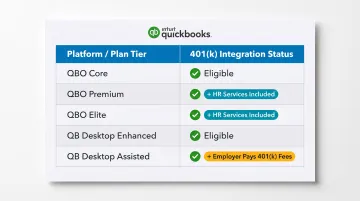
QuickBooks Plan Eligibility
| Platform | Plan | 401(k) Integration |
|---|---|---|
| QBO Payroll | Core | ✅ Yes |
| QBO Payroll | Premium | ✅ Yes + HR Services |
| QBO Payroll | Elite | ✅ Yes + HR Services |
| QB Desktop | Enhanced | ✅ Yes |
| QB Desktop | Assisted | ✅ Yes (employer pays 401(k) directly; Intuit handles tax liabilities only) |
Employee Data Required Before Setup
Every employee's QuickBooks record must include:
- Full legal name, Social Security Number, and date of birth
- Hire date and current employment status
- Work email address (required for provider enrollment)
- Pay rate or salary and pay frequency
Missing any of these fields will either block the provider's onboarding flow or create data mismatches that surface during contribution processing.
Business Data Required
- Legal business name, address, and entity type
- Federal Employer Identification Number (EIN)
- Principal officer details
- Business checking account for contribution debits (verified via Plaid or micro-deposits)
Access and Compatibility
- Only a Primary Administrator or Payroll Administrator can complete the integration. Verify your user role before starting.
- Your 401(k) provider must be a QuickBooks-integrated partner. Confirm compatibility in the QuickBooks App Store or through the Employee Benefits tab in QuickBooks.
How to Set Up the Integration (Step-by-Step)
Errors on the first payroll run almost always trace back to two places: the provider connection or the employee record configuration. Follow these steps in order.
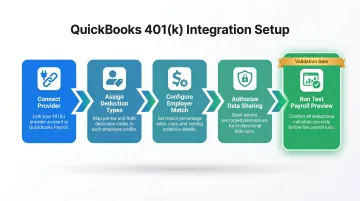
Step 1: Connect the 401(k) Provider
QuickBooks Online:
- Go to Payroll → Employee Benefits
- Locate the 401(k) plan card and select "Learn More" or "Build Your Plan"
- Authenticate with your Intuit account
- Complete the provider's onboarding flow. Some fields auto-populate from QuickBooks
QuickBooks Desktop:
- Go to Employees → Payroll Center → Employee Benefits
- Select the 401(k) plan card and follow the setup flow
In both cases, verify all auto-populated business information before proceeding. Pre-filled fields can carry over outdated addresses or entity names.
Step 2: Assign Deduction Types to Each Employee
In QBO: Payroll → Employees → [Employee Name] → pencil icon in Pay section → Deductions → +Add Deductions → Retirement Plans → select plan type → enter amount or percentage → Save
In Desktop: Employees → Employee Center → [Employee] → Payroll Info → Additions, Deductions, and Company Contributions section
Select the correct plan type for each employee: 401(k) (pre-tax) or After-Tax Roth 401(k). Enter the contribution amount or percentage per pay period per their enrollment election.
Step 3: Configure Employer Matching Contributions
Add a separate employer contribution line alongside the employee deduction in each employee's payroll record. Set the matching formula to match your plan document exactly. For example, dollar-for-dollar up to 3% of compensation.
Watch for a known Desktop bug: QuickBooks Desktop does not support decimal values in employer match percentages. A 3.5% match will revert to 3% during sync. This issue has been documented in the QuickBooks Community and requires manual verification after each payroll run.
Step 4: Authorize Data Sharing
During the provider's onboarding flow, confirm that the provider has been granted access to pull census and payroll data from QuickBooks. After each payroll run, the provider automatically receives:
- Contribution amounts per employee
- Deferral rates from each enrollment election
- Employment status updates (new hires, terminations)
Step 5: Run a Test Payroll Preview
Before submitting the first live payroll, run a payroll preview for at least two to three employees. Confirm that:
- Employee deduction line items appear with the correct amounts
- Employer contribution line items appear separately
- Amounts match each employee's enrollment election
If any line item is missing or shows the wrong amount, recheck the deduction type assignment in Step 2 before running live.
Post-Setup Validation and Ongoing Sync Management
Confirming Setup Success
After the first live payroll run:
- Check that the 401(k) provider's dashboard shows the connected QuickBooks account
- Confirm the first contribution debit from your business checking account
- Pull a payroll detail report and cross-reference deduction amounts against provider records for every enrolled employee
Syncing Contribution Changes
When employees update their deferral rate through the provider's participant portal, that change doesn't always update the QuickBooks employee record automatically, particularly on Desktop.
Desktop sync process: Go to Employees → Employee Benefits → Sync 401(k) data with Accrue before each payroll run.
QBO: Contribution changes sync automatically on a daily basis. Review the provider dashboard for pending changes before processing payroll, especially in the first few months after setup.
Unsynced changes produce the wrong deduction on the next paycheck, shorting or over-withholding the employee and requiring a retroactive fix with the provider.
New Hires and Terminations
New hires: Once an employee meets the plan's eligibility criteria (age, service period), add their deduction record in QuickBooks and confirm enrollment through the provider's system.
Terminations: Remove 401(k) deduction records from the terminated employee's QuickBooks payroll profile and flag the termination in the provider's system. Leaving stale deduction records active is a common source of erroneous contributions on final paychecks.
Settling 401(k) Liabilities in QuickBooks
Each payroll run creates a non-tax payroll liability in QuickBooks for both employee deferrals and employer match amounts. These must be settled through the Pay Liabilities workflow, not Write Checks.
Using Write Checks instead of Pay Liabilities leaves the liability balance outstanding in the payroll module even after the payment clears. To correct this: delete the incorrect check and recreate it via Employees → Payroll Center → Pay Liabilities. This applies to both QBO and Desktop, including Desktop Assisted Payroll users. Intuit handles your tax liabilities, but 401(k) contributions are your responsibility to settle.
Common Integration Problems and Fixes
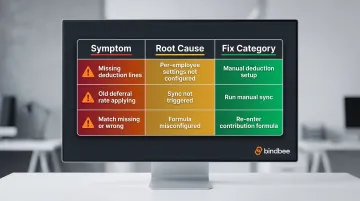
Use this quick reference to identify the issue before diving into the fix:
| Symptom | Root Cause | Section |
|---|---|---|
| Deduction lines missing from paychecks | Per-employee settings not configured | ↓ Issue 1 |
| Old deferral rate still applying | Sync not triggered after election change | ↓ Issue 2 |
| Match missing or calculating wrong | Contribution formula misconfigured | ↓ Issue 3 |
Employee Deductions Not Appearing on Payroll
Problem: 401(k) deduction lines are missing from paychecks despite the provider being connected.
Cause: The provider connection doesn't automatically populate per-employee deduction settings. Each employee record needs to be configured individually.
Fix: Go to each employee's Pay section in QuickBooks and manually add the retirement plan deduction. Confirm the contribution type and amount match their enrollment election.
Contribution Amounts Not Updating After Election Changes
Problem: An employee changes their deferral rate in the provider portal, but the next paycheck reflects the old amount.
Cause: The change wasn't synced back to QuickBooks. Either auto-sync wasn't active or the manual sync step was skipped.
Fix: Trigger a manual sync (Desktop: Employees → Employee Benefits → Sync; QBO: check the provider dashboard for pending sync notifications) and verify the updated amount in the employee's deduction settings before running payroll.
Employer Match Not Calculating Correctly
Problem: Employer match contributions are missing, calculating at the wrong rate, or applying to the wrong employees.
Cause: The employer contribution line wasn't configured in the employee's payroll record, or the formula entered doesn't match the plan document. On Desktop, decimal match percentages frequently cause rounding errors.
Fix: Work through these steps for each affected employee:
- Pull the plan document and confirm the exact match formula (rate, cap, eligible compensation definition)
- Re-enter employer contribution settings in the employee's payroll record to match
- If the error spans multiple employees, contact the provider to reconcile shortfalls for prior pay periods. Keep a written log of the affected periods, as most providers require documentation to process retroactive adjustments
Pro Tips for a Smoother Integration
Run a payroll audit report before you start. Missing SSNs, birth dates, or hire dates will either block the provider's onboarding flow or create data mismatches that only surface during contribution processing, often weeks later. Identify and fill those gaps before touching the integration.
Build a pre-payroll sync checkpoint. For the first few months after setup, review the provider dashboard for pending enrollment changes or election updates before every payroll run. Confirm those changes are reflected in QuickBooks deduction records. This prevents the common cycle of incorrect deductions followed by retroactive corrections.
For HR tech and benefits platforms managing 401(k) payroll integrations across multiple employer clients, the per-employer, per-employee manual setup process doesn't scale. Each new employer client who uses a different payroll system (QuickBooks, ADP, Gusto, Paychex, Rippling, or any of the dozens of regional and SMB platforms) requires a separate integration build.
Bindbee's unified payroll API solves this directly. More than 50 benefits platforms connect to 65+ HRIS and payroll systems, including QuickBooks, through a single normalized API. Key capabilities for 401(k) workflows include:
- Real-time contribution data sync across all connected payroll systems
- Automated new-hire and termination event handling without manual triggers
- Payroll deduction mapping that normalizes vendor-specific deduction codes without manual cleanup
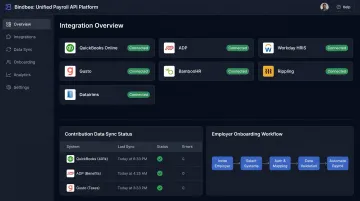
For platforms managing 401(k) contribution workflows across a diverse employer base, that's the difference between a multi-quarter integration backlog and shipping employer onboarding in hours.
Conclusion
The accuracy of 401(k) contributions depends almost entirely on how well the initial setup is executed. Errors in deduction configuration, incomplete employee data, or unsynced contribution changes produce compliance failures that require correction programs, penalty exposure, and the kind of employee trust issues that are hard to walk back.
Treat this as a two-part process: careful preparation and provider connection, followed by disciplined ongoing sync management. A well-configured QuickBooks 401(k) integration eliminates manual reconciliation between payroll runs, but only when deduction mappings, employee records, and contribution rate changes are verified before the first payroll processes, not after.
Frequently Asked Questions
Does QuickBooks do 401(k) plans?
QuickBooks doesn't administer 401(k) plans directly. It integrates with third-party providers (currently Accrue, now part of Vestwell) to automate contribution deductions and transfer payroll data to the plan provider through QuickBooks Payroll.
Which 401(k) providers integrate directly with QuickBooks Payroll?
The current QuickBooks-integrated partner is Accrue 401k, now part of Vestwell, which serves both QBO and Desktop users. Check the QuickBooks App Store or the Employee Benefits tab in QuickBooks to verify current compatible providers, as the partner list has shifted in recent years.
Do I need to manually enter 401(k) deductions for each employee in QuickBooks?
Yes, in most configurations. The provider connection establishes the data pipeline, but each employee's deduction type and contribution amount must be assigned individually in their QuickBooks payroll record. The integration doesn't populate these automatically.
How does QuickBooks handle employer 401(k) matching contributions?
Employer match contributions are set up as a separate contribution line in each employee's payroll record. You enter the matching formula manually, and it must align with your plan document. The match does not populate automatically from the provider connection.
Can I integrate a 401(k) plan with QuickBooks Desktop Payroll?
Yes. QuickBooks Desktop Payroll Enhanced and Assisted both support 401(k) integration through Accrue/Vestwell. The workflow is similar to QBO but requires manual sync triggers. Administrators must sync before each payroll run to pull in updated contribution elections.
What happens to 401(k) deductions when an employee is terminated in QuickBooks?
Remove the 401(k) deduction record from the terminated employee's payroll profile in QuickBooks. Then flag the termination in the provider's system. Leaving stale deduction records active can cause erroneous contributions to process on the final paycheck or after employment ends.