
The stakes are real. EBSA recovered $1.4 billion in direct payments to employee benefit plans in FY 2025, with delinquent participant contributions designated as an ongoing National Policy Priority for enforcement. Getting the integration right — and keeping it right — isn't just an administrative convenience.
This guide is written for HR admins, payroll managers, and benefits administrators already running payroll through BambooHR who want to automate 401(k) contribution flows with a provider like Vestwell or Human Interest. It covers eligibility, the exact setup steps, ongoing employer responsibilities, and how to diagnose common failures.
Key Takeaways
- BambooHR Payroll's 401(k) integration is one-way only: payroll data flows out to your provider, but deferral changes made in the providers portal never sync back
- Not all plans qualify. Irregular pay schedules, multiple payroll providers, and per-pay-period non-mandatory employer contributions are common disqualifiers.
- Setup costs $300 one-time and takes approximately 4–6 weeks after your first payroll run
- The integration automates data transfer but does not fund contributions or manage deduction codes
- Validate after your first two post-integration payroll cycles, or systematic errors will compound
Before You Begin: Eligibility and Prerequisites
How the Data Flow Works (One-Way, Not Two-Way)
BambooHR Payroll sends contribution and participant data to your 401(k) provider via encrypted SFTP after each payroll run. No manual file uploads needed. But the flow is strictly one-directional. If a participant updates their deferral rate in the Vestwell portal, that change does not travel back to BambooHR. You must update the deduction amount in BambooHR manually.
BambooHR also does not transfer the actual money. Funding contributions to the plan provider remains the employer's responsibility after each payroll cycle.
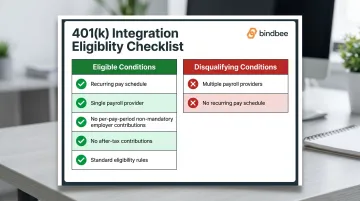
Plan Eligibility: Go/No-Go Checklist
Before starting setup, confirm your plan passes all of these:
| Condition | Eligible? |
|---|---|
| Recurring pay schedule exists in both BambooHR and the 401(k) portal | ✅ Required |
| Single payroll provider for all pay groups | ✅ Required |
| No per-pay-period non-mandatory employer contributions (e.g., profit-sharing) | ✅ Required |
| No after-tax contributions (unless using a TPA) | ✅ Required |
| Eligibility rules don't exclude specific employee classes or compensation types | ✅ Required |
| Multiple payroll providers for different pay groups | ❌ Disqualifies |
| No established recurring pay schedule | ❌ Disqualifies |
If any disqualifying condition applies, resolve it with your plan administrator before submitting the setup request.
Technical Prerequisites and Information to Gather
Once your plan passes the eligibility check, confirm your technical environment is ready before submitting the setup form.
Your environment must meet these conditions before setup:
- Payroll must be actively running inside BambooHR (not just the HRIS module)
- All pay groups must exist in both BambooHR and your 401(k) provider's portal
- Payroll deduction codes must be configured in BambooHR before the integration can route contributions correctly
Have the following ready before you submit the setup form:
- Company Name
- BambooHR Payroll Client ID (this is also the 401(k) Vendor Client ID)
- 401(k) vendor Plan ID (from your implementation manager)
- 401(k) vendor contact name, phone, and email
Cost note: BambooHR's Payroll Reporting team charges a one-time $300 fee to build the 401(k) report. Your 401(k) provider (e.g., Vestwell) does not charge separately for facilitating the integration.
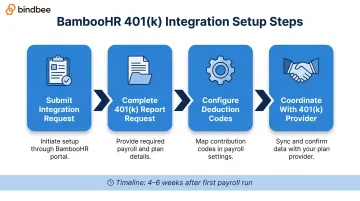
How to Set Up the BambooHR Payroll 401(k) Integration
Setup follows a fixed sequence: form submission → report configuration → deduction code setup → test payroll run. Skipping or rushing any step will cause contribution failures on the first live payroll cycle.
Step 1: Submit the Integration Request
Submit a payroll report request to BambooHR's Payroll Reporting team via their official Formstack form. Required fields:
- Company Name and Payroll Client ID
- Requestor name, email, and phone
- Request Type: "Build new report"
- New Report Type: "New 401k Report - $300"
- Acknowledgment of the $300 fee
- Confirmation that payroll is already running in BambooHR
Step 2: Complete the 401(k) Report Request
After the initial form, you'll be redirected to a 401(k) Report Request form. Complete these fields precisely:
- 401(k) Vendor (e.g., Vestwell)
- File Type: "File feed for my 401(k) vendor"
- 401(k) Vendor Plan ID (from your implementation manager)
- 401(k) Vendor Client ID (your BambooHR Client ID)
- Vendor contact name, phone, and email
Any mismatch in Plan ID or contact details will prevent the file feed from routing correctly. Double-check both IDs against what your 401(k) provider has on file. Fulfillment takes approximately 4–6 weeks after your first payroll run.
Step 3: Configure Payroll Deduction Codes
Deduction codes must be set up in BambooHR Payroll before the integration can categorize and route contributions. Required codes:
- Pre-Tax 401(k) — dollar amount
- Pre-Tax 401(k) — percentage
- Roth 401(k) — dollar amount
- Roth 401(k) — percentage
- Employer contributions
- Retirement loan repayments
These codes must mirror exactly what your 401(k) provider expects to receive. Mismatched labels are one of the most common causes of contribution errors after go-live.
Step 4: Coordinate With Your 401(k) Provider
Once BambooHR builds the report, loop in your 401(k) provider's implementation manager to:
- Confirm the file feed format matches their expectations
- Run a test data transfer before your first live payroll
- Validate that the Plan ID and contribution types are correctly mapped on their side
Problems caught here take minutes to fix. The same issues discovered after a live payroll run can require manual off-cycle uploads and reconciliation.
Your Ongoing Responsibilities as an Employer
The integration automates data transfer, but it does not manage your data for you. Everything it sends to your 401(k) provider depends entirely on what you maintain in BambooHR. If the source data is wrong, the contribution records will be wrong.
Payroll Code Maintenance
- Keep all active deduction codes correctly assigned to each employee
- Update dollar or percentage amounts whenever a saver changes their deferral rate
- Enter retirement loan repayments in BambooHR for each affected participant
Saver Data Accuracy
Keep these fields current in BambooHR for every active participant:
- Date of birth
- Social Security number
- Email address
- Hire, termination, and rehire dates (with specific effective dates, not approximate)
Saver status changes appear in the 401(k) portal one business day after the next pay date following the change in BambooHR.
Pay Group and Schedule Management
All pay groups must exist in both BambooHR and the 401(k) portal. Any changes to pay frequency or schedule must be communicated to your 401(k) provider's representative in advance. Running payroll before the scheduled pay date can trigger early contribution processing and create reconciliation issues.
The DOL requires employee contributions to be deposited no later than the 15th business day of the following month (7 business days for plans with under 100 participants). Late deposits are prohibited transactions under ERISA and must be reported on Form 5500. The integration does not manage this deadline for you.
Validating That Your Integration Is Working
What to Check After Your First Two Payroll Cycles
A successful integration produces a specific set of results. After your first post-integration payroll run:
- Employee deferrals and employer contributions should appear processed in the 401(k) portal shortly after payroll closes
- Newly hired or terminated participants should be reflected in the portal within one business day after the next pay date
After the second cycle, run these checks:
- Confirm contribution amounts match the deferral rates set in BambooHR
- Verify saver statuses: active, terminated, and new hires should all be accurate
- Spot-check Roth vs. pre-tax categorization: misclassified contributions are harder to correct retroactively
- Cross-reference totals against your payroll deduction records for that period
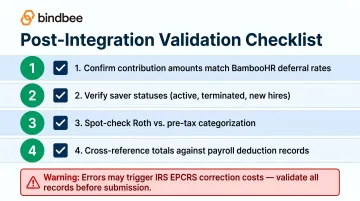
Skipping this step is how systematic errors stay hidden for months. Retroactive corrections to 401(k) plans require IRS EPCRS filings. The Voluntary Correction Program carries fees ranging from $2,000 to $4,000 depending on plan assets.
Ongoing Audits
Don't treat validation as a one-time event. Run periodic data audits to catch:
- SSN mismatches between BambooHR and the 401(k) portal
- Pay group discrepancies
- Stale deferral rates that haven't been updated after participant elections changed
If you're building an HR tech or benefits platform that ingests BambooHR 401(k) contribution and enrollment data, manual audits only catch what you can see. Bindbee connects BambooHR and 65+ other HRIS and payroll systems through a single normalized API — no custom builds required per system. It normalizes payroll run data, deduction codes, benefits enrollment, and saver status into a consistent schema. Webhooks fire automatically on new hires, terminations, and deferral changes, so downstream systems stay current without polling.
Common BambooHR 401(k) Integration Problems and Fixes
Most setup and post-payroll issues trace back to a small set of recurring causes. Here's how to identify and fix the most common ones.
Issue: Integration Setup Is Rejected or Deemed Ineligible
Problem: The Payroll Reporting team declines to build the report, or you receive an error indicating the plan doesn't qualify.
Likely cause: A disqualifying plan feature — most commonly, no recurring pay schedule in both systems, multiple payroll providers across pay groups, or per-pay-period non-mandatory employer contributions.
Fix: Review the eligibility checklist above, address the specific disqualifying condition with your plan administrator, and resubmit once the plan design is compliant.
Issue: Contributions Missing or Incorrectly Allocated After Payroll
Problem: Employee deferrals or employer contributions fail to appear in the 401(k) portal, or amounts are wrong.
Likely cause: Deduction codes are missing, misconfigured, or not assigned to the correct employees, or deferral amounts in BambooHR haven't been updated to reflect current elections.
Fix:
- Audit all active deduction codes against the required list
- Confirm each employee's deferral rate is entered correctly in BambooHR
- Contact your 401(k) provider's representative to check whether a manual off-cycle upload is needed for the current period
Issue: Employee Status Changes Not Reflecting in the 401(k) Portal
Problem: New hires, terminations, or rehires entered in BambooHR aren't appearing in the provider portal, or are showing with delays or missing data.
Likely cause: Status changes were entered without a specific effective date, or were entered after that period's payroll had already been submitted.
Fix: Always include a specific effective date when recording hire, termination, or rehire events in BambooHR. If the change was missed before payroll closed, contact your 401(k) provider to update the saver record manually.
Frequently Asked Questions
What is 401(k) payroll integration?
A 401(k) payroll integration is an automated connection between a payroll system and a 401(k) provider that sends employee deferral and employer contribution data to the retirement plan after each payroll run. It eliminates manual file submissions and reduces the risk of contribution errors from rekeyed data.
Can you run payroll through BambooHR?
Yes — BambooHR offers a built-in payroll module (BambooHR Payroll) available as a paid add-on for U.S.-based employees. It covers tax filing, direct deposit, and deduction management. The native 401(k) integration requires this payroll module; it is not available through the HRIS module alone.
What is the difference between 180° and 360° 401(k) integration?
A 180° integration is one-directional: the payroll system sends contribution data to the 401(k) provider, but deferral changes made in the provider portal don't flow back to payroll. A 360° integration is bidirectional: deferral elections updated in the 401(k) system automatically update payroll deductions as well, reducing the employer's manual maintenance overhead.
What integrates with BambooHR for 401(k) management?
BambooHR Payroll integrates natively with providers like Vestwell for automated contribution file feeds. Marketplace partners like Human Interest offer a deeper 360° integration through the BambooHR marketplace, which includes automated deferral syncing and eligibility determination.
Does BambooHR integrate with Paychex for 401(k)?
BambooHR (the HRIS) and BambooHR Payroll are different products. A BambooHR HRIS–Paychex Flex integration exists on the Paychex Marketplace for employee data syncing, but it is not a 401(k)-specific integration. For 401(k) purposes, confirm the integration path with both your 401(k) provider and your payroll provider.