
Introduction
Businesses running ADP for payroll and QuickBooks Online for accounting often struggle with duplicate data entry, reconciliation errors, and hours lost manually transferring payroll figures into their books. A 2024 survey of small business owners found that manual payroll entry ranks among the most time-consuming and error-prone accounting tasks, particularly for teams processing bi-weekly or more frequent payroll runs.
While ADP and QuickBooks Online can connect, the integration method, setup steps, and ongoing maintenance requirements vary widely depending on which ADP product you use (ADP RUN versus ADP Workforce Now) and your business setup. Results are not guaranteed out of the box.
Misaligned account mappings, incomplete chart of accounts configurations, and skipped testing steps account for the majority of integration failures. These problems often surface weeks later during financial close.
Getting the setup right from the start prevents those downstream headaches. This guide covers what you need before you start, the exact steps to connect ADP RUN with QuickBooks Online using the General Ledger tool, common mistakes to avoid, and what to do when things go wrong.
Key Takeaways
- ADP RUN's General Ledger feature handles the native QuickBooks Online sync with no third-party connector needed
- Before you start, confirm active subscriptions to both ADP RUN and QBO, with a fully configured chart of accounts
- Account mapping is the most error-prone step: wrong category alignment causes downstream reporting problems
- ADP Workforce Now lacks a native QBO connector; those users need third-party tools or manual export
- When the native integration falls short, API-based middleware tools are the practical next step
What You Need Before Integrating ADP Payroll with QuickBooks Online
Skipping the prep work is the most common reason ADP-QuickBooks integrations fail. Fixing errors after the fact takes far longer than getting it right upfront.
System and Subscription Requirements
Confirm you have an active ADP RUN account with the General Ledger feature enabled and an active QuickBooks Online subscription. All four QuickBooks Online subscription tiers: Simple Start ($38/month), Essentials ($75/month), Plus ($115/month), and Advanced ($275/month) all support third-party app integrations.
The General Ledger Interface is included in all four ADP RUN packages: Essential Payroll, Enhanced Payroll, Complete Payroll & HR Plus, and HR Pro Payroll & HR.
That said, the feature may not appear in your account menu by default. If you don't see the General Ledger option, contact your ADP account representative to have it activated.
Account and Data Readiness
Your QuickBooks Online Chart of Accounts must be fully configured before connecting. The integration pulls this list directly during setup, and you will need clearly named accounts for:
- Wages and salaries
- Payroll taxes (employer and employee portions)
- Benefits deductions
- Direct deposits
- Employer liabilities
Verify that your ADP payroll categories (earnings codes, deductions, and taxes) are complete and stable before setup. Any payroll items added after initial mapping must be reassigned manually in the General Ledger settings.
Access and Permissions
Confirm you have admin-level access in both ADP RUN and QuickBooks Online. The setup process requires the ability to authorize the QuickBooks Online connection and modify the Chart of Accounts.
If you are an accountant managing a client's accounts, verify that ADP Accountant Connect is set up. This free platform lets you manage GL mapping across multiple clients from one dashboard, with built-in alerts for missed payroll runs or outstanding liability issues.
How to Integrate ADP Payroll with QuickBooks Online
This walkthrough follows the ADP RUN General Ledger method, the most direct native path, and covers each step with what to verify before moving forward.
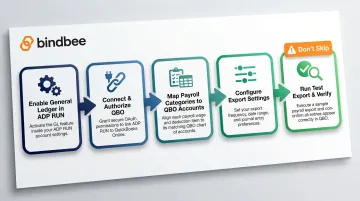
Step 1: Enable the General Ledger Feature in ADP RUN
Navigate to the General Ledger section in your ADP RUN account menu. Use the search field and type "General Ledger Home" to locate it quickly.
If the General Ledger option is not visible, contact your ADP account representative to activate it. This feature is not always enabled by default and may carry an additional cost depending on your ADP plan, though it is officially included in all four RUN packages.
Step 2: Connect ADP RUN to QuickBooks Online
From the General Ledger dropdown, select QuickBooks Online as your accounting software and click "Connect to QuickBooks." You will be redirected to authorize the connection using your QBO credentials.
Once authorized, ADP RUN automatically pulls in your QuickBooks Online chart of accounts. Review the uploaded accounts carefully.
If accounts are missing, add them in QuickBooks first, then click "Import Again" in ADP RUN to refresh the list. Accounts cannot be added directly in RUN. They must exist in QuickBooks before they can be imported.
Step 3: Map Payroll Categories to QuickBooks Accounts
Map each ADP payroll expense category to the corresponding QuickBooks account:
- Gross wages → Payroll expense account
- Employer taxes (FICA, FUTA, SUTA) → Employer tax expense accounts
- Employee deductions → Liability accounts
- Direct deposit offsets → Bank account or ADP Clearing account
- Employer benefits contributions → Benefits expense accounts
You can export entries as a single summarized line for all employees (company-level) or as individual entries per employee (employee-level). Employee-level is required for job costing or department-level reporting, and custom employee-level mapping lets different employees post to different QBO accounts, which is useful for multi-department businesses. Use the "Advanced Mappings" option in the ADP GL interface to configure Employee and Department-level customization.
Critical mapping decisions:
- Check Register Account: Select the bank account used for payroll, or "Not Applicable" if using ADP's check printing service
- Net Pay: Choose between your Bank Account or an ADP Clearing account. Mapping directly to the Bank Account requires manual journal entry edits for manual checks to ensure bank statement reconciliation
Step 4: Configure Export Settings and Naming Preferences
From the General Ledger home screen, set your preferred file name format, decide whether to summarize by company or employee, and choose whether to include check register data.
Align these settings with how your accountant or bookkeeper organizes financial records, as these choices directly affect how each payroll run appears in QuickBooks.
Step 5: Run a Test Export and Verify Data in QuickBooks Online
Before processing a live payroll through the integration, run a test export using a past payroll period. In QuickBooks Online, verify that:
- All journal entries have posted to the correct accounts
- The total net payroll matches what ADP reports
- No duplicate transactions have been created
- Employer tax liabilities match the ADP summary
Only proceed to live operation once the test reconciles cleanly. Skipping this step is the fastest way to end up with duplicate transactions or misposted tax liabilities that require manual correction after the fact.
When Does Integrating ADP with QuickBooks Online Make Sense?
This integration isn't the right move for every business. Whether it pays off depends on payroll volume, accounting complexity, and your team's capacity to maintain it. Those three factors point in very different directions.
Integration provides clear ROI when:
- You run payroll bi-weekly or more frequently
- The same person handles both payroll and bookkeeping
- Your accountant needs real-time payroll expense visibility in QBO without waiting for manual exports
- You manage multiple departments requiring separate expense tracking
- You need detailed job costing tied to individual employee records
Not every setup supports a clean connection, though. Integration adds friction when:
- You use ADP Workforce Now instead of ADP RUN (the native connector only supports RUN)
- Your payroll structure includes highly customized codes that don't map cleanly to standard QBO accounts
- You manage multiple entities requiring separate QBO instances per entity
- Your chart of accounts changes frequently or is still under development
In these cases, a middleware or API-based approach is the more dependable path, mapping payroll data to your exact account structure without bending the native connector past its limits.
Common Mistakes and How to Avoid Them
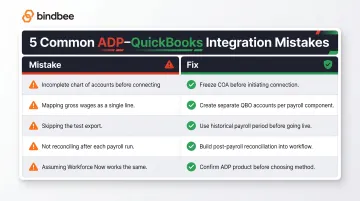
The most common integration failures are not technical glitches. They are setup and configuration errors that produce silent inaccuracies that only surface during reconciliation.
Mistake 1: Incomplete chart of accounts before connecting
Teams often connect ADP to QBO before the chart of accounts is finalized. When new accounts are added in QBO later, ADP's mapping does not update automatically. New or unmapped payroll items trigger an "Update GL Company Mapping" task on the Home page, requiring manual assignment before the next export.
Fix: Freeze your chart of accounts before initiating the connection. If you must add accounts later, return to General Ledger > General Ledger Setup and click "Import Again" to refresh the list.
Mistake 2: Mapping gross wages instead of net components separately
Mapping a single "payroll expense" account instead of breaking out gross wages, employer FICA, employer benefits, and direct deposit liabilities leads to overstated or understated expense lines. Each payroll component should map to a distinct QBO account for accurate financial statements.
One constraint worth knowing: ADP can only apply Classes to gross wages, employer taxes, and Retirement Match, not to net pay components. Net Pay mapping requires a deliberate choice between ADP Clearing account or Bank Account.
Fix: Create separate accounts in your QuickBooks chart of accounts for each payroll component before mapping.
Mistake 3: Skipping the test export
Processing a live payroll as the first integration run means any mapping error immediately affects real financial records.
Fix: Always use a historical payroll period for testing before going live. Verify that totals reconcile and that all accounts are correctly assigned.
Mistake 4: Not reconciling after each payroll run
Even after a clean setup, sync issues can surface without warning, triggered by software updates, new pay codes, or employee-level changes.
Fix: Build a post-payroll reconciliation check into your workflow. Compare the ADP payroll summary report total to what posted in QBO before closing each period.
Mistake 5: Assuming ADP Workforce Now works the same way
Users switching from ADP RUN to Workforce Now often expect the same GL connector to work; it does not. Workforce Now requires a different integration path (third-party tool or custom setup), and attempting to use the RUN GL method will fail or produce incomplete data.
Fix: Confirm which ADP product you are using before starting setup. If you use Workforce Now, review the alternatives section below.
Quick-reference: fixes at a glance
- Finalize your chart of accounts before connecting ADP to QBO
- Map each payroll component to a separate account; never lump into one expense line
- Run a test export using a historical payroll period before going live
- Reconcile ADP summary totals against QBO after every payroll run
- Verify your ADP product (RUN vs. Workforce Now) before choosing an integration method
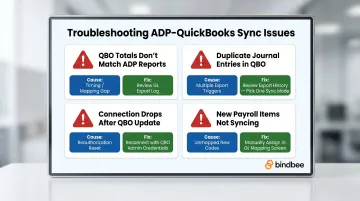
Troubleshooting Common ADP-QuickBooks Integration Issues
The four issues below account for the majority of ADP-QuickBooks sync failures, each with a clear cause and a direct fix.
Problem 1: QBO totals don't match ADP payroll reports
Likely cause: Timing differences between when ADP processes payroll and when the sync posts to QBO, or a mapping gap where some payroll items have no corresponding QBO account.
What to check: Review the ADP GL export log for unmapped line items. The GL Transaction History screen displays four transmission states: "Not Posted," "In Progress," "Posted," and "Failed." Verify the export date matches the payroll processing date, and run a manual journal entry in QBO for any missing amounts before the period closes.
Problem 2: Duplicate journal entries appearing in QuickBooks
Likely cause: The payroll export was triggered more than once for the same pay period, often when users click "create file" multiple times or when both an automatic and manual sync run simultaneously.
What to check: Review the GL export history in ADP to identify duplicate submissions. Delete the duplicate journal entries in QBO, and confirm whether your setup uses automatic or manual export mode. Pick one and disable the other.
Note: if a manual check is already recorded in QBO, ADP detects it and produces a "Duplicate check batch failure." The system will not import the manual check. See the ADP GL Guide for details.
Problem 3: Connection drops or authorization error after a QuickBooks Online update
Likely cause: QBO updates occasionally reset third-party app authorizations. ADP's connection needs to be reauthorized.
What to check: In ADP RUN's General Ledger settings, disconnect and reconnect to QuickBooks Online by reauthorizing with your QBO admin credentials. Verify that your QBO subscription tier still supports third-party app connections.
Problem 4: New payroll items not syncing after the initial setup
Likely cause: Any new earnings codes, deductions, or benefits added in ADP after the initial mapping was completed are not automatically mapped to QBO accounts.
What to check: After adding any new payroll component in ADP, return to the General Ledger mapping screen and manually assign the new item to the appropriate QBO account before the next payroll run. A task appears on the Home page under "To Do" titled "Update GL Company Mapping" when new or unmapped items exist. Full mapping instructions are in the ADP GL Guide.
Still stuck? Contact ADP GL support directly:
- Email: RUNGL@adp.com
- Phone: 866-750-7133, Option 1
- Hours: 8:00 am - 8:00 pm ET, Monday through Friday
Alternatives to the Native ADP-QuickBooks Integration
The ADP RUN General Ledger connector works well for straightforward setups, but businesses with more complex requirements, such as multiple entities, non-RUN ADP products, or programmatic data access, often need a different approach.
Alternative 1: Manual journal entries (for ADP Workforce Now or QuickBooks Desktop users)
Export ADP payroll summary reports as Excel files and manually enter journal entries in QuickBooks. ADP RUN provides several payroll reports accessible via the Reports menu: Payroll Summary (hours, wages, taxes, deductions by pay period), Payroll Details (tax and deduction amounts broken down by type), and Payroll Liability (total liability combining employee and employer portions). Reports can be exported using the "Export to Excel" button located in the bottom-left corner of any report page.
This method has no setup cost but scales poorly. It introduces human error risk and becomes unsustainable at higher payroll frequencies.
When this is appropriate:
- Very small businesses with infrequent payroll (monthly or less)
- Transitional period before a proper integration is set up
- ADP Workforce Now users without budget for middleware
Alternative 2: Third-party middleware connectors
Tools like dedicated payroll-accounting connectors can bridge ADP Workforce Now and QuickBooks Online when the native GL path is not available. These require ongoing subscription costs and configuration maintenance, but provide more flexibility for custom field mapping and multi-entity setups.
Note that Zapier does not currently support ADP integrations, and Make's ADP Workforce Now connector is restricted to Enterprise plan subscribers only with separate ADP Marketplace API credentials required.
Important: Compatibility and data fidelity should be verified before committing, as not all middleware tools handle payroll tax liabilities correctly. Some community responses to ADP Workforce Now users suggest the Zed Axis app (available in the QuickBooks App Store) which uses IIF Journal Entry files, though this has not been independently verified.
Alternative 3: Unified API platforms for HR and payroll data
HR tech companies, benefits platforms, and payroll software builders that need programmatic access to ADP data across multiple employer accounts have a different problem than a single-employer QBO sync. A unified API like Bindbee connects to 60+ HR and payroll systems, including ADP, through a single integration point, so teams aren't building and maintaining separate connectors for each platform.
Bindbee normalizes payroll data into consistent fields across all connected systems:
- Employee payroll runs: gross pay, net pay, earnings, deductions, and taxes
- Payroll run records: processing records and pay period dates
- Bank info: employee account details for direct deposit
This is particularly useful when the ADP-QBO data flow is one of many integrations that need to stay in sync across employer accounts. Built-in webhooks alert downstream systems when fresh payroll data is available, removing the need for custom polling or sync logic.
The platform is SOC 2 Type II, ISO 27001, GDPR Ready, and HIPAA Compliant, which is relevant for teams handling sensitive payroll and financial data across multiple employers.
Frequently Asked Questions
Can I integrate ADP with QuickBooks?
Yes, ADP RUN natively integrates with QuickBooks Online through the General Ledger feature. ADP Workforce Now does not have the same native connector and requires a third-party tool or custom setup.
How do I connect ADP with QuickBooks?
Enable the GL feature in ADP RUN, authorize the connection to QuickBooks Online, map payroll categories to your chart of accounts, and export after each payroll run. The complete setup typically takes 30-60 minutes for a standard configuration.
What is ADP integration?
ADP integration connects ADP's payroll and HR system to another platform, such as QuickBooks Online, so that payroll data (wages, taxes, deductions) flows automatically without manual re-entry. The connection can be native (built-in GL connector) or API-based, depending on which ADP product you use.
Does ADP RUN work with QuickBooks Online?
Yes, ADP RUN has a dedicated General Ledger connector for QuickBooks Online that automatically pulls in the chart of accounts and allows payroll-to-account mapping. This is specific to ADP RUN and not all ADP products.
What happens if ADP and QuickBooks data doesn't match after syncing?
Start by checking the ADP GL export log for unmapped items or duplicate exports. Then reconcile the discrepancy with a manual journal entry and review mapping settings for any payroll items added since the initial setup. The GL Transaction History screen shows transmission status and error details.
Do I need a third-party tool to integrate ADP with QuickBooks Online?
ADP RUN users do not need a third-party tool. The native GL feature handles the connection. However, ADP Workforce Now users or those needing more customized data flows will likely need middleware or an API-based solution.